

Overview
This guide shows how to create Excel dashboards and convert Excel to dashboard views with Sprucely.io, using a sample Excel file from Sprucely.io’s website to walk through the full flow.
Select your data source, configure the import, and let Sprucely.io build the dashboard for you — with line charts, bar charts, multi-dimensional charts, and other visuals based on your data structure.
You can then adjust the layout and charts as needed. If you’re wondering how to create a dashboard in Excel using an “Excel to dashboard” flow, the steps below will help. You can also use JSON or comma separated text files, or define a web stream source for live data analysis.
No matter what type of task you are tackling, whether it involves writing project management reports, keeping track of sales, or summarizing financial data, this comprehensive guide will walk you through the entire process step by step. This includes everything from importing the necessary data to generating a dashboard with the help of artificial intelligence, customizing that dashboard to fit your specific needs, and finally, sharing the completed work with others who may benefit from it.
This guide will take you about 5 minutes.
Summary
What you will learn in this detailed guide using Sprucely.io:
- Convert Excel (or JSON/text data from files or web streams) into an interactive dashboard in seconds.
- Connect or upload your data, optionally configure ranges and dimensions, then let AI generate charts and layouts automatically.
- Customize visuals, themes, and layout in the editor, and share via email links — no installs required.
- Supports live data, cross-filtering, and multi-dimensional charts for interactive analysis.
Watch the Video
This video gives an introduction to Sprucely.io and how you can import data to create a Sprucely.io dashboard. Detailed instructions follow the video.
Sprucely.io introduction and how to create an interactive dashboard from Excel (1:25 mins)
Create a Dashboard from Excel Data
Follow these steps to import your data and generate a dashboard template automatically.
We will use a sample Excel file from Sprucely.io's website to walk through the full flow. You can also use JSON or text files, or define a web stream source for live data analysis. The flow follows the recommended way of importing data into Sprucely and generating a dashboard template automatically.
Select your data source, configure the import, and let Sprucely.io build the dashboard for you. The result includes line charts, bar charts, multi-dimensional charts, and other visuals based on your data structure. You can then adjust the layout and charts as needed.
Instructions:
- Login to Sprucely.io - Open a browser and surf to www.sprucely.io. If you have not yet done so, go ahead and login.
- Create a new flow - Go to the Create New Flow page, accessible from the top-right menu.
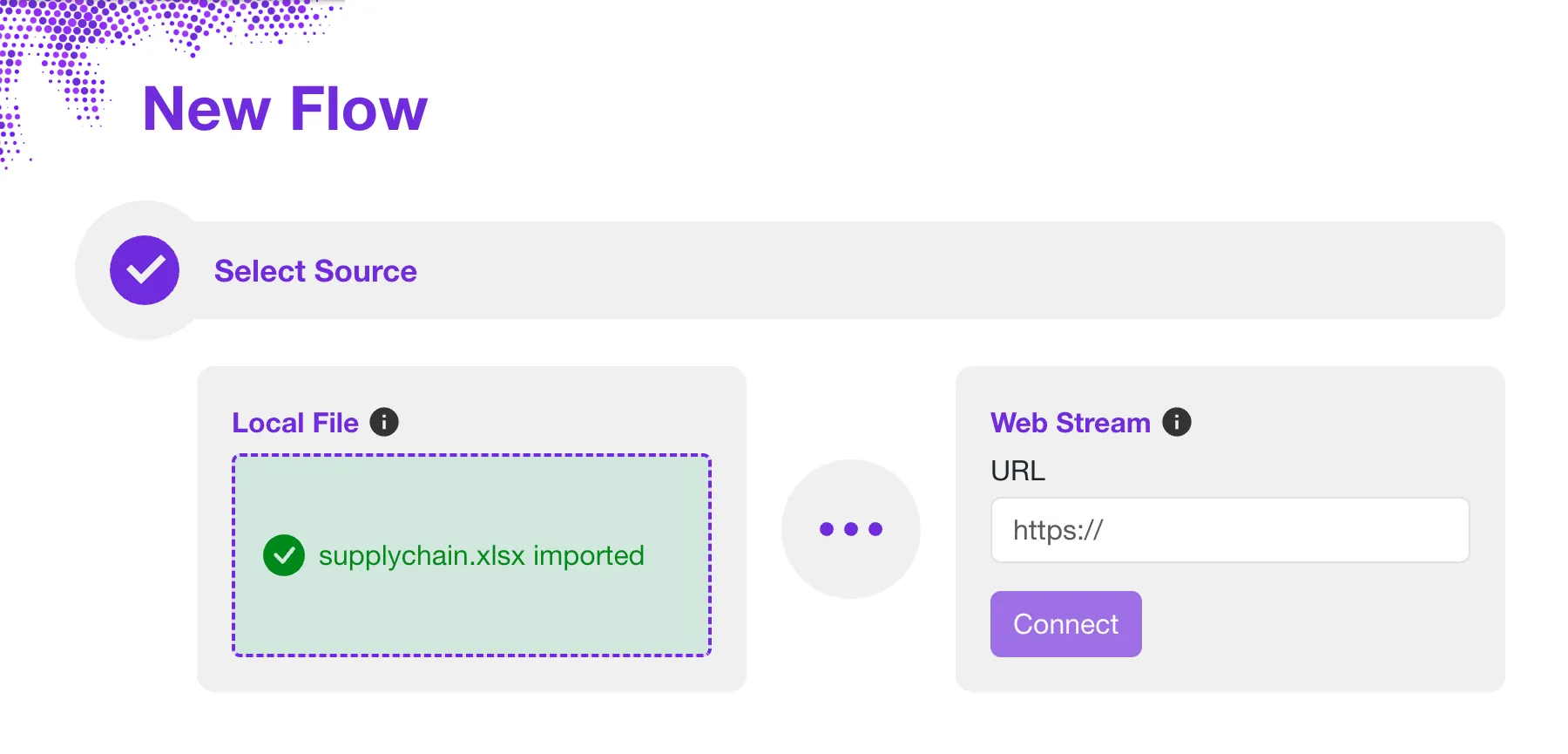
- Select source - We will use a web stream source for our example. Our sample Excel file is served directly from the Sprucely.io web server. In the Web Stream section, input the URL https://www.sprucely.io/supplychain.xlsx and click Connect. If you have a local file, drag and drop it from your File Explorer. Alternatively, select the file from the filesystem in the Local File section.
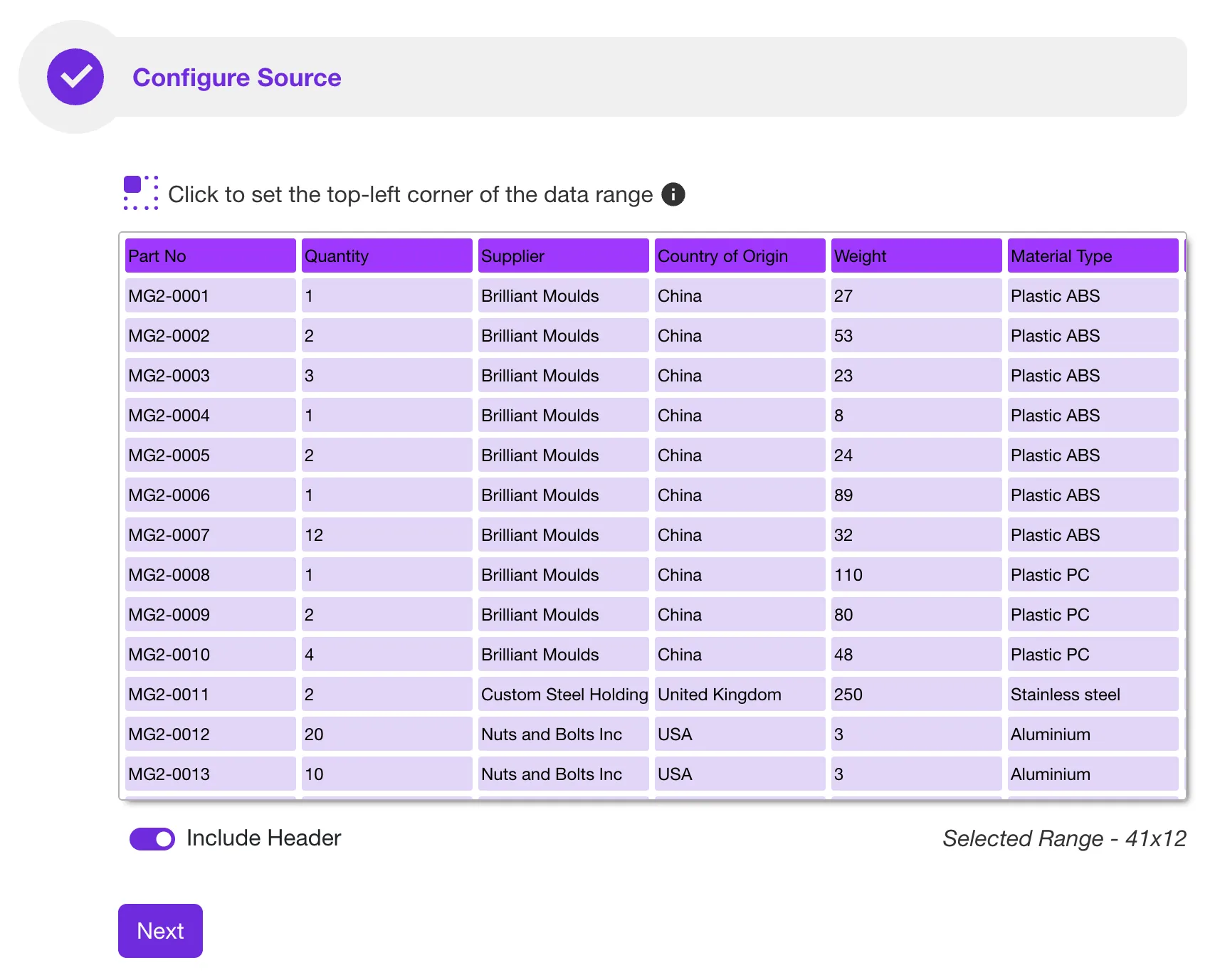
- Configure source - In this step you can manually decide which data range to import from your data source. This is useful for importing a subset of the data. Use it to choose a specific sheet if your Excel document has multiple sheets. No configuration is required if you use our sample file. Sprucely.io automatically detects the ideal data range to import. Click Next to continue.
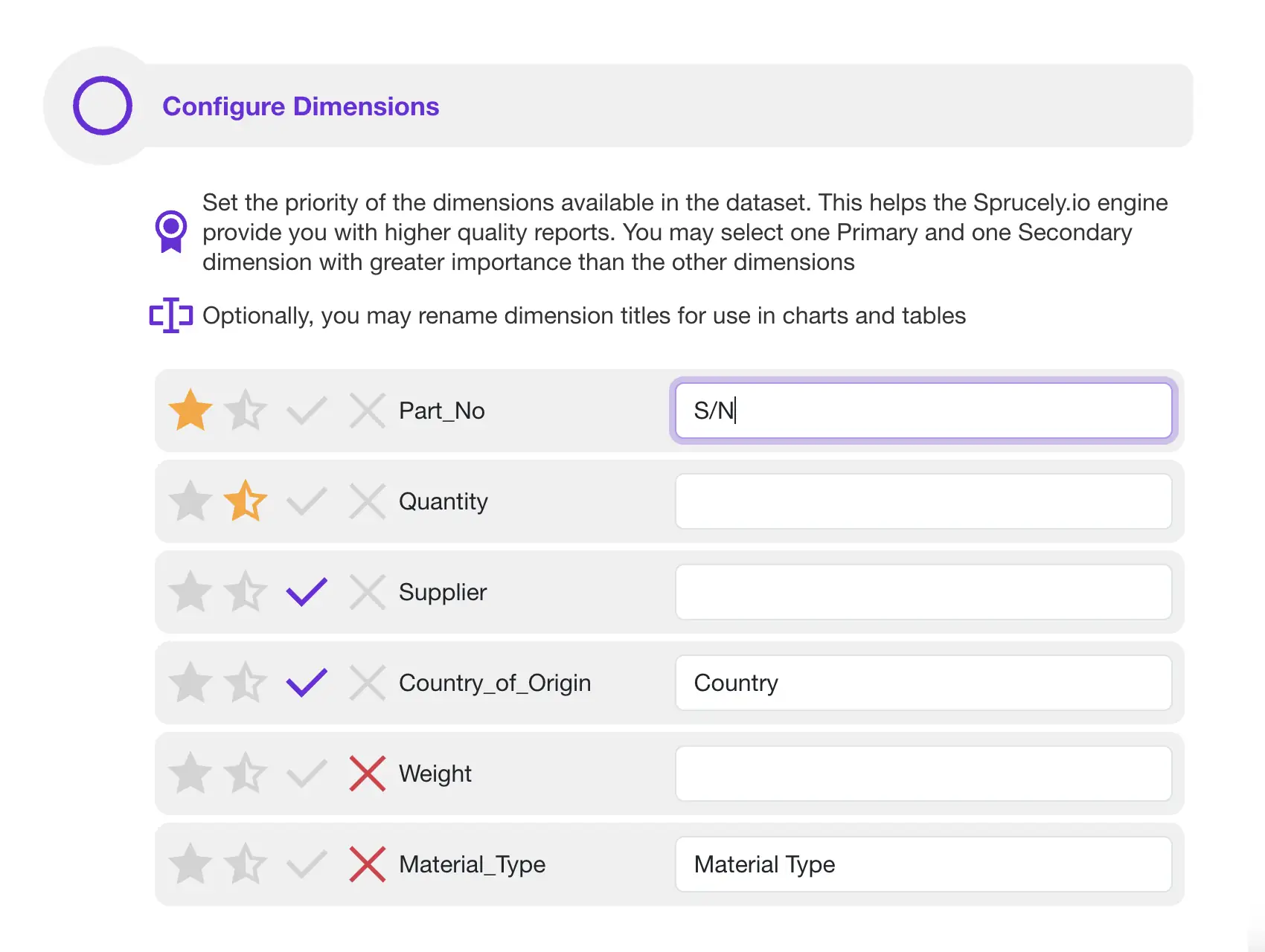
- Configure dimensions - Give cues to Sprucely.io's insights engine and dashboard generator by setting priorities in this step. If you are using our sample file, there is no need to modify any of these settings. Click Next to continue.
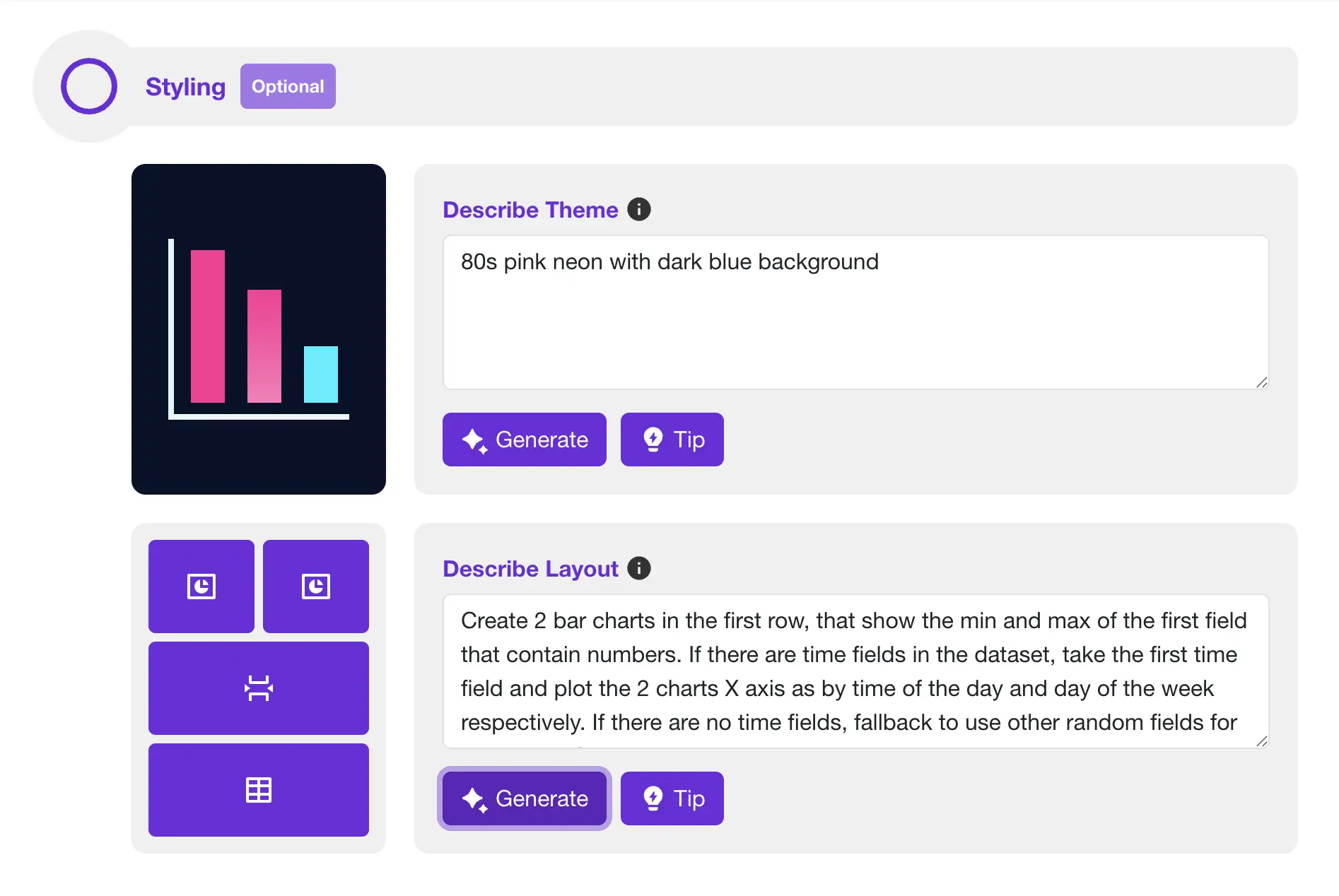
- Let AI build your dashboard - Use free-form text to describe your preferred color theme. You can also describe the layout and charts data presentation. Simply describe what you would like to see, and click Generate to have Sprucely.io's AI build it directly for you.
- Generate dashboard - Set a title of your dashboard and click Save to generate the dashboard template. Once completed, you are automatically routed to the dashboard editor page. You can modify the dashboard if you desire.
Customize the Dashboard
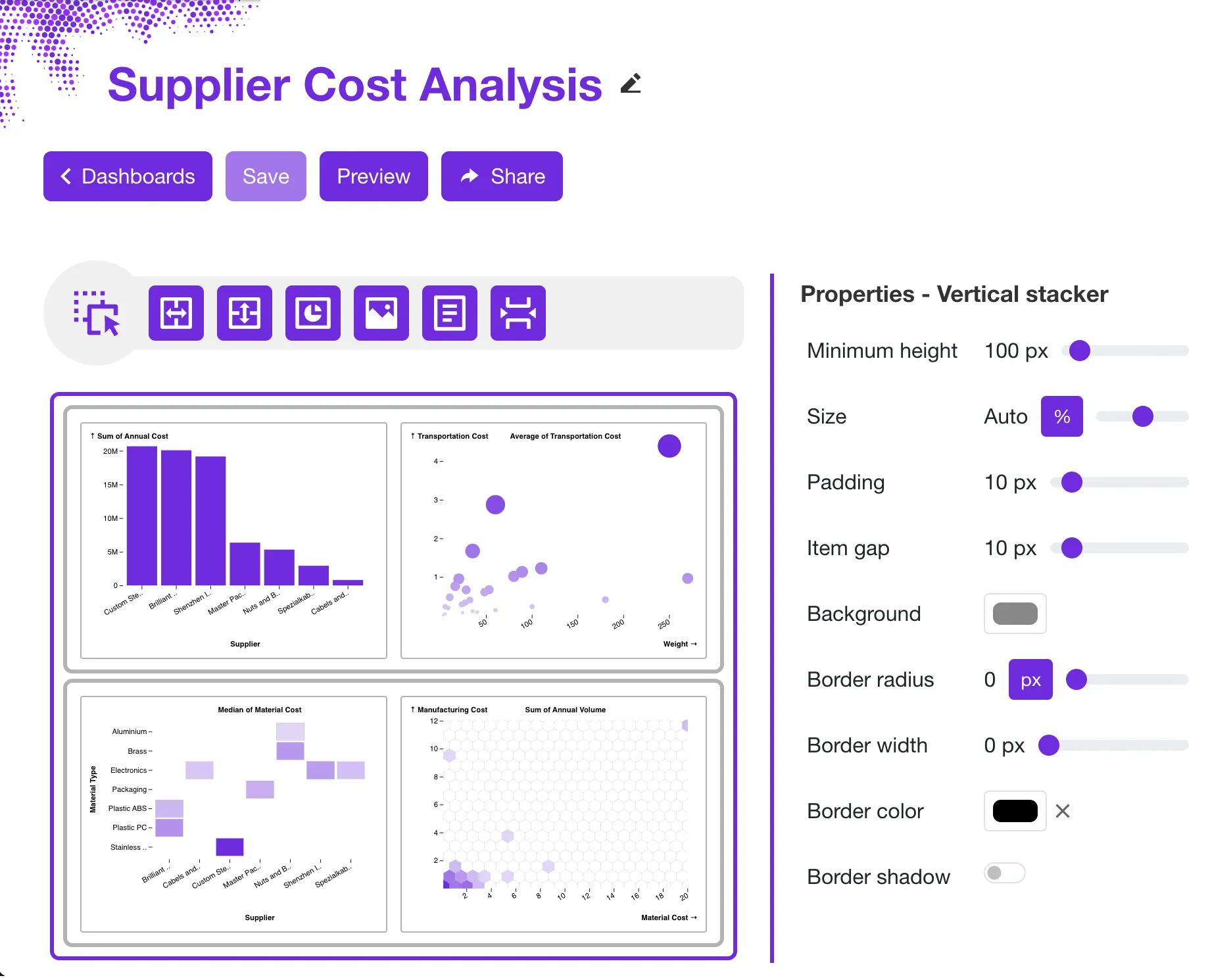
The generated dashboard is a starting point. Sprucely.io lets you customize the layout, colors, style, and data views until the dashboard matches your needs. You can swap chart types (e.g. replace a bar chart with a line chart, or add bubble charts to show complex data relationships).
Use drag-and-drop to rearrange widgets and set up dynamic charts on an interactive Excel dashboard. These charts will update automatically when viewers filter the data, allowing for cross-filtering on multi-dimensional charts. The result is a data visualization you can use in meetings, reports, or embedded in PowerPoint presentations.
Instructions:
- Login to Sprucely.io - Open a browser and surf to www.sprucely.io. If you have not yet done so, go ahead and login.
- Find the dashboard - Go to the Create Dashboards page, accessible from the top-right menu. Find the dashboard you would like to edit from the list.
- Start editor - Press the dashboard name link or click the Edit dashboard button on the same row. This proceeds to the Dashboard Editor.
- Change layout - Use simple drag'n drop actions and layout widgets. Modify the dashboard layout exactly the way you want. You can drag new widgets to add to your dashboard from the top action toolbar. Move an existing widget simply by dragging it to the new location.
- Color themes - Change the default color theme by selecting a pre-defined theme. You can also customize the color palette. You may also override the default theme by configuring specific colors for individual widgets. Read more about theme support.
- Configure charts - Customize function and style for all widgets in the dashboard. Use the options in the properties sidebar. It will always show the options for the currently selected widget (click on a widget to select it). Read more about the chart wizard.
- Save - Don't forget to click on the Save button in the top action toolbar to save your changes.
Sharing the Dashboard with Others
Sharing dashboards from Sprucely.io is straightforward. Send recipients a link by e-mail so they can view the interactive dashboard in their browser — no software install needed on their end. This is helpful when people from different teams or places need to see the same data.
Instructions:
- Login to Sprucely.io - Open a browser and surf to www.sprucely.io. If you have not yet done so, go ahead and login.
- Find the dashboard - Go to the Create Dashboards page, accessible from the top-right menu. Find the dashboard you would like to share from the list.
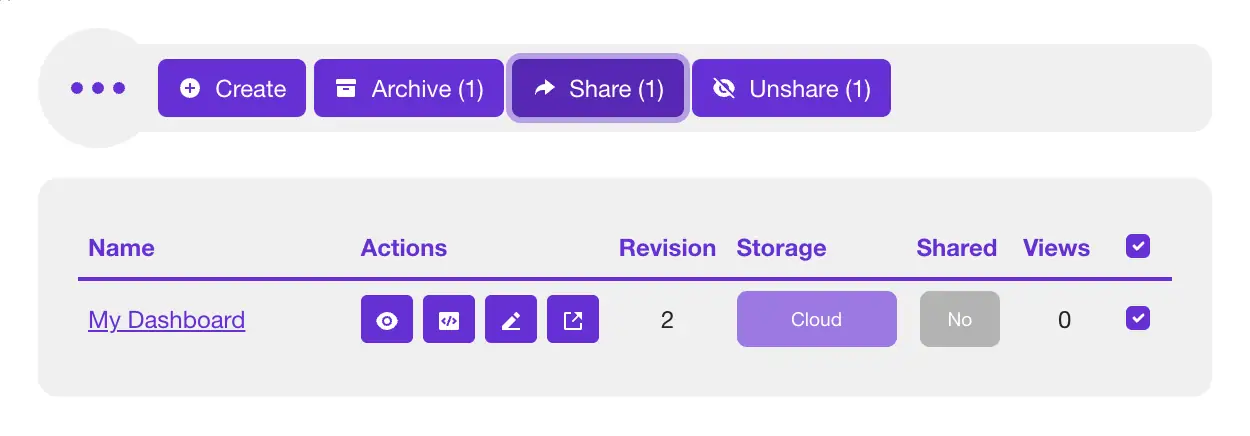
- Select and share - Click the checkbox for the dashboard you want to share. It is at the far right end of the row. Now, the Share button in the action toolbar will become enabled and should indicate Share (1). Click the button to proceed.
- Select recipients - Your dashboard should be pre-selected from the previous step. Find the submit message form after the selection list. Find the E-mails field and enter at least one e-mail address you would like to send the dashboard to. Optionally, you may also enter a custom message for your recipient(s).
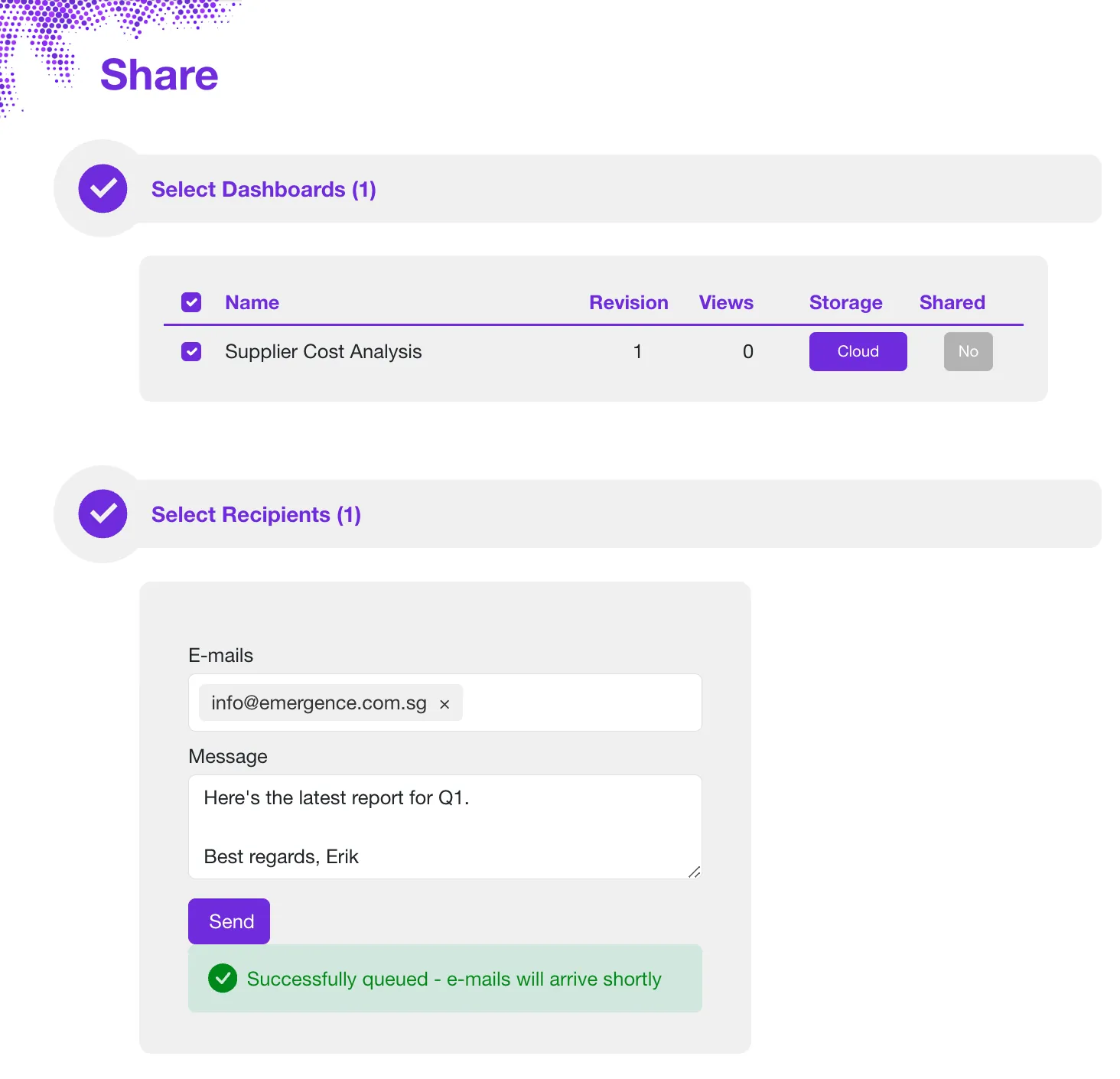
- Send - Click on the Send button and Sprucely.io will take care of the rest!

Conclusion
We have shown how to create Excel dashboards in a few steps — from uploading your file to sharing the finished product with your team. Sprucely.io automates the data import, chart generation, and layout — so you spend your time refining rather than building from scratch.
This step by step how-to covers the basics. For more on dashboard design, chart types, and layout principles, see our guide on creating a dashboard in Excel. If you want to embed your dashboard in a slide deck, follow our PowerPoint dashboard how-to. You can also browse our Excel dashboard templates for layout ideas.
Sprucely.io works with Excel files, JSON, text files, and web streams. Whether your data lives locally or in the Cloud, you can get a working interactive dashboard in seconds. If you’re new and want a quick refresher on how to create a dashboard in Excel, this guide shows the essentials end-to-end.
Sign up for free with Sprucely.io to get started. You can also check out our getting started guide first.
This article was first published 11th December 2025.

Frequently Asked Questions
Question: What kinds of data sources can I use with Sprucely.io?
Short answer: You can build dashboards from Excel files, JSON, text files, and web streams. Use a local file (drag-and-drop or file picker) or a web stream URL (for example, https://www.sprucely.io/supplychain.xlsx) to enable live data analysis.
Question: How do I import only a specific sheet or range from my Excel file?
Short answer: In the Configure source step, choose the sheet and set the exact data range you want to import - ideal when your workbook has multiple sheets or you only need a subset. However, Sprucely.io auto-detects the optimal range based on your content, so most of the time no manual setup is required.
Question: How does the AI generate my dashboard, and how can I guide the results?
Short answer: After optional dimension configuration, you describe your preferred theme, layout, and chart styles in free-form text, then click Generate. Sprucely.io uses this guidance to auto-build a dashboard with visuals like line, bar, and multi-dimensional charts; you then name it and Save to create the template.
Question: Can I customize the dashboard after it’s generated?
Short answer: Yes you can. In the Dashboard Editor, use drag-and-drop to change the layout, swap chart types (e.g., bar to line, or add bubble charts), and adjust colors via themes or per-widget settings. You can configure each widget’s function and style, and enable interactive analysis with dynamic updates and cross-filtering on multi-dimensional charts.
Question: How do I share a dashboard, and do viewers need to install anything?
Short answer: From the Create Dashboards page, select your dashboard, click Share, enter recipient emails, and click Send. Recipients access the interactive dashboard via a link in their browser — no software installation required.